1
Open Gemini Connectors
Go to Gemini’s Connectors page in your browser.
Open Gemini Connectors ↗Gemini + Tripsy
Connect Gemini to your Tripsy account with a custom connector. Work on your itinerary in conversation, then take the plan with you in Tripsy.
Connect Gemini to your Tripsy account with a custom connector. Work on your itinerary in conversation, then take the plan with you in Tripsy.
From conversation to itinerary
Build a trip. Make it yours. Keep it organized.
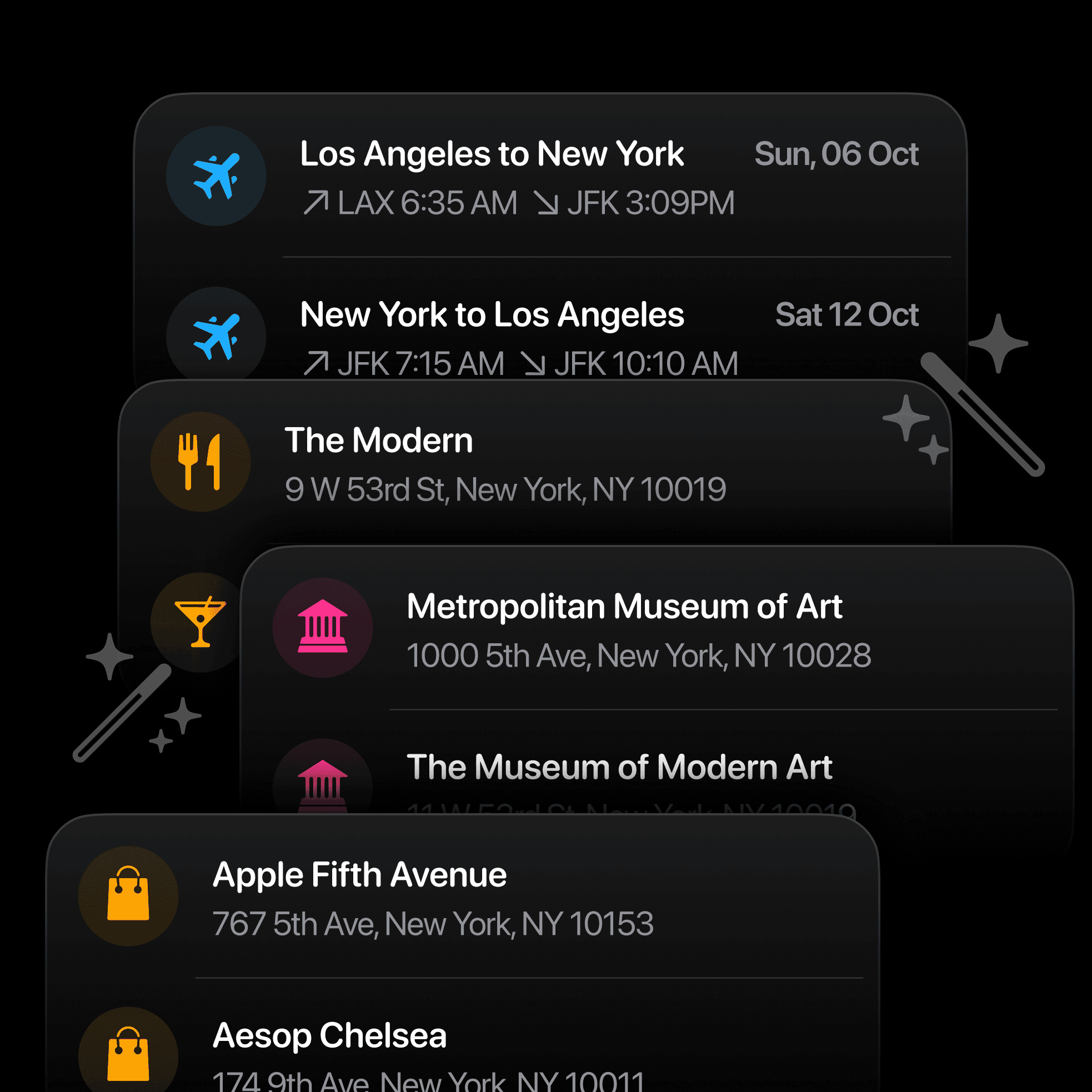
Ask your assistant to rearrange activities by time, location, or preference. Review the proposed order and save the changes to your trip.
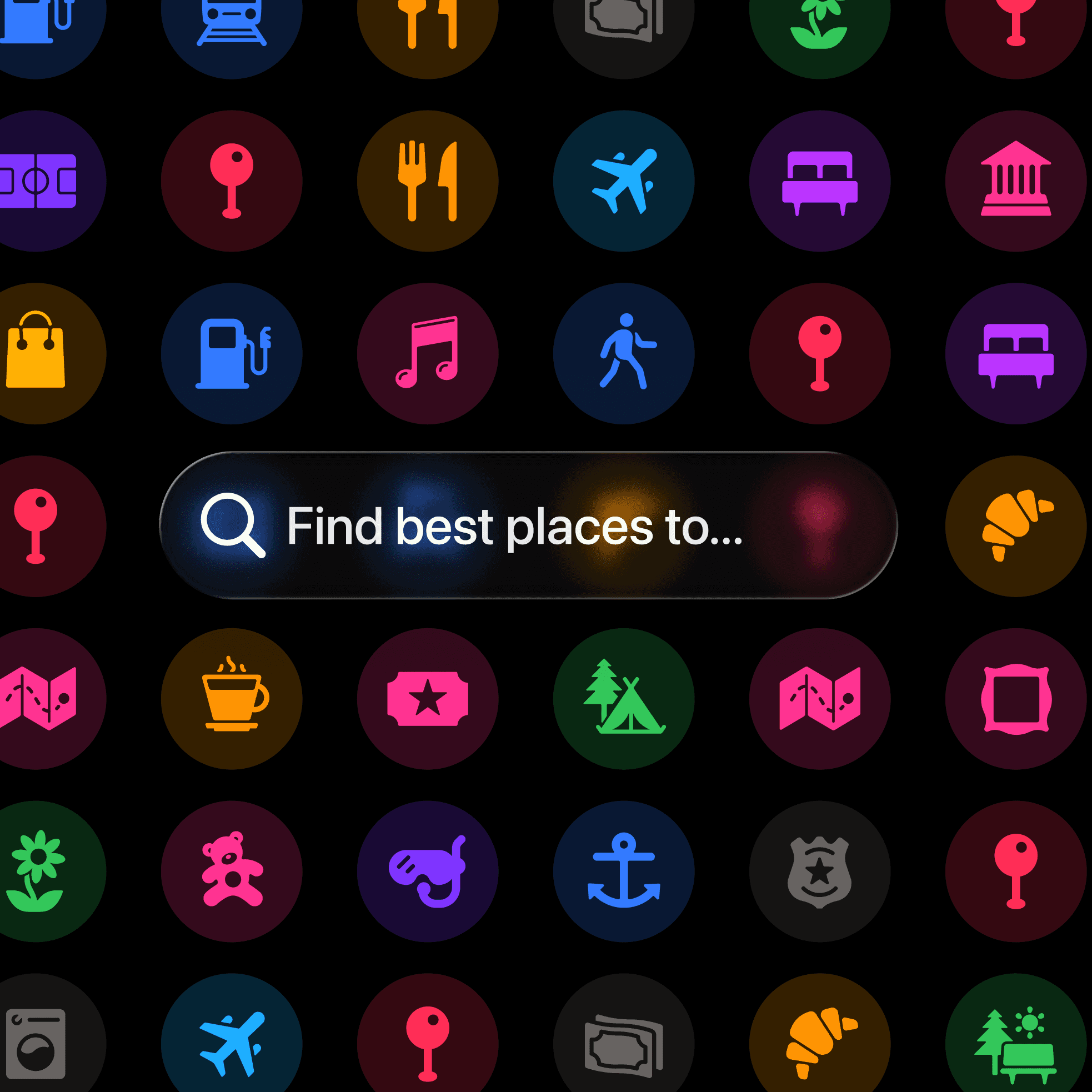
Describe what you want to do — hiking, dining, museums — and your assistant adds relevant activities to your trip seamlessly.
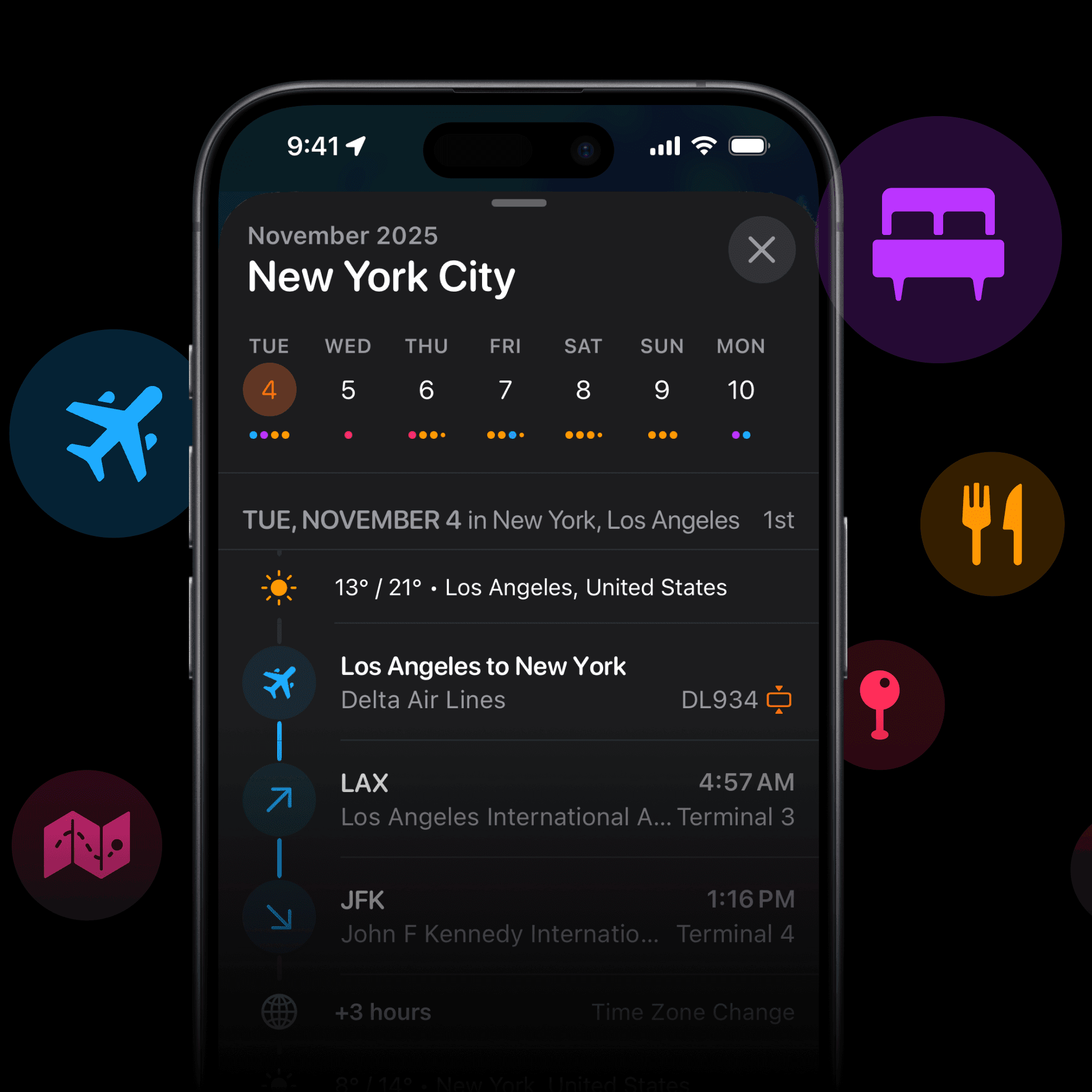
Change dates, swap activities, adjust timing. Natural conversation makes complex itinerary updates feel effortless.
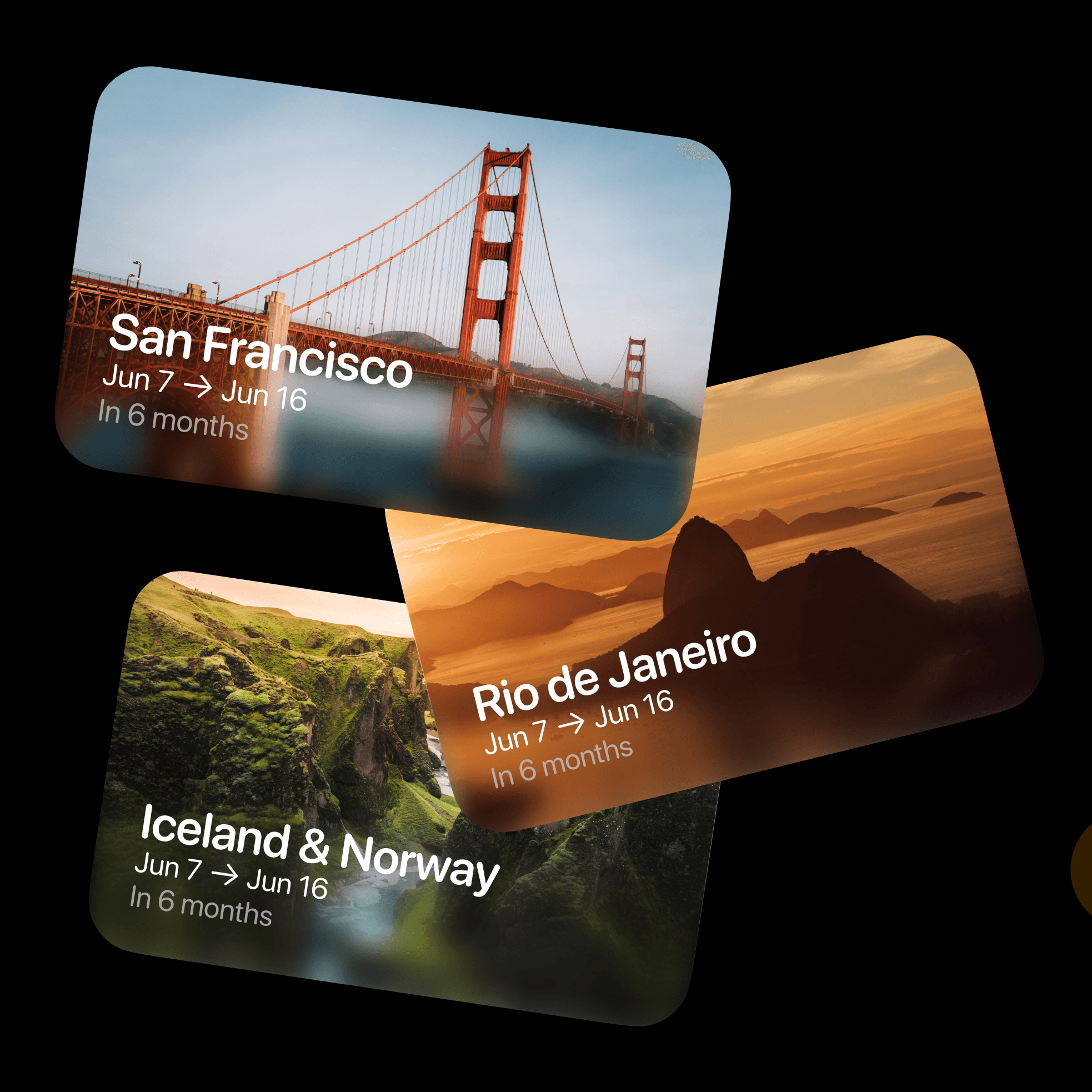
Build entire trips from scratch. Tell your assistant your destination, dates, and interests — it generates a complete itinerary.
Ask your assistant to rearrange activities by time, location, or preference. Review the proposed order and save the changes to your trip.
Describe what you want to do — hiking, dining, museums — and your assistant adds relevant activities to your trip seamlessly.
Change dates, swap activities, adjust timing. Natural conversation makes complex itinerary updates feel effortless.
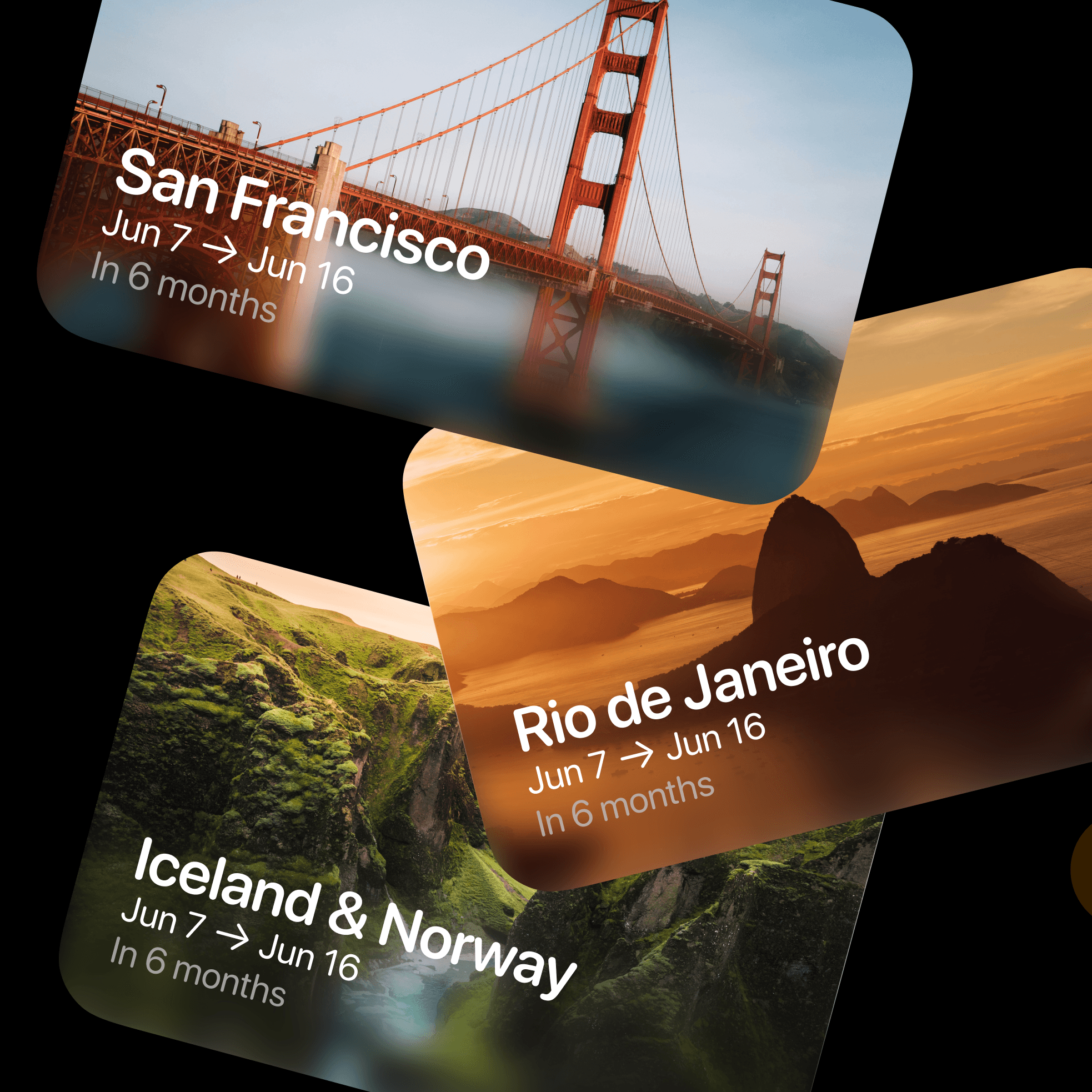
Build entire trips from scratch. Tell your assistant your destination, dates, and interests — it generates a complete itinerary.
Ask your assistant to rearrange activities by time, location, or preference. Review the proposed order and save the changes to your trip.
Describe what you want to do — hiking, dining, museums — and your assistant adds relevant activities to your trip seamlessly.
Change dates, swap activities, adjust timing. Natural conversation makes complex itinerary updates feel effortless.
Build entire trips from scratch. Tell your assistant your destination, dates, and interests — it generates a complete itinerary.
Ask your assistant to rearrange activities by time, location, or preference. Review the proposed order and save the changes to your trip.
Describe what you want to do — hiking, dining, museums — and your assistant adds relevant activities to your trip seamlessly.
Change dates, swap activities, adjust timing. Natural conversation makes complex itinerary updates feel effortless.
Build entire trips from scratch. Tell your assistant your destination, dates, and interests — it generates a complete itinerary.
Ask your assistant to rearrange activities by time, location, or preference. Review the proposed order and save the changes to your trip.
Describe what you want to do — hiking, dining, museums — and your assistant adds relevant activities to your trip seamlessly.
Change dates, swap activities, adjust timing. Natural conversation makes complex itinerary updates feel effortless.
Build entire trips from scratch. Tell your assistant your destination, dates, and interests — it generates a complete itinerary.
Ask your assistant to rearrange activities by time, location, or preference. Review the proposed order and save the changes to your trip.
Describe what you want to do — hiking, dining, museums — and your assistant adds relevant activities to your trip seamlessly.
Change dates, swap activities, adjust timing. Natural conversation makes complex itinerary updates feel effortless.
Build entire trips from scratch. Tell your assistant your destination, dates, and interests — it generates a complete itinerary.
Try a conversation
A few things you can ask your assistant.
3 days in Tokyo with activities scattered across neighborhoods? Just ask your assistant to reorganize.
3 days in Tokyo with activities scattered across neighborhoods? Just ask your assistant to reorganize.
"I have museum visits in Shibuya, dinner in Shinjuku, temples in Asakusa, and shopping in Harajuku. Reorganize these by location to minimize travel time."
"I have museum visits in Shibuya, dinner in Shinjuku, temples in Asakusa, and shopping in Harajuku. Reorganize these by location to minimize travel time."
Want authentic experiences beyond the typical tourist spots? Ask for local favorites.
Want authentic experiences beyond the typical tourist spots? Ask for local favorites.
"Add 3 local experiences to my Barcelona trip: authentic tapas bars, lesser-known parks, and street art neighborhoods."
"Add 3 local experiences to my Barcelona trip: authentic tapas bars, lesser-known parks, and street art neighborhoods."
Starting fresh with just a destination? Let your assistant build your entire itinerary from scratch.
Starting fresh with just a destination? Let your assistant build your entire itinerary from scratch.
"Create a 5-day trip to Bali for someone who loves beaches, yoga, and local food. Include activities and reasonable travel times."
"Create a 5-day trip to Bali for someone who loves beaches, yoga, and local food. Include activities and reasonable travel times."
Flight delays, weather, or change of heart? Adapt your trip instantly.
Flight delays, weather, or change of heart? Adapt your trip instantly.
"My flight is delayed by 4 hours. What should I remove from tomorrow's itinerary, and what can I add the next day instead?"
"My flight is delayed by 4 hours. What should I remove from tomorrow's itinerary, and what can I add the next day instead?"
Feeling adventurous one day, relaxed another? Get instant swap suggestions.
Feeling adventurous one day, relaxed another? Get instant swap suggestions.
"Swap tomorrow's leisurely morning for something adventurous — hiking, rock climbing, or water sports. What's available nearby?"
"Swap tomorrow's leisurely morning for something adventurous — hiking, rock climbing, or water sports. What's available nearby?"
Coordinating multiple people with different interests? Balance everyone's preferences.
Coordinating multiple people with different interests? Balance everyone's preferences.
"My group has mixed interests: some want adventure, some want cultural sites, some want nightlife. Create a balanced 4-day itinerary."
"My group has mixed interests: some want adventure, some want cultural sites, some want nightlife. Create a balanced 4-day itinerary."

Good questions, clear answers
Gemini and your travel plans
What is MCP?
MCP is the connection that lets compatible AI assistants and agents work with your Tripsy trips and supported planning tools.
MCP is the connection that lets compatible AI assistants and agents work with your Tripsy trips and supported planning tools.
Why can’t I see “+ Custom”?
Custom connector availability depends on your Google account, region, language, and Gemini settings. Check Google’s current requirements in the official setup guide below.
Custom connector availability depends on your Google account, region, language, and Gemini settings. Check Google’s current requirements in the official setup guide below.
What can I change?
Use supported tools to create trips, add activities, and update itinerary details. Available actions depend on the connection.
Use supported tools to create trips, add activities, and update itinerary details. Available actions depend on the connection.
Can Gemini update my trip?
Only when the connection exposes the required tools and your account permits those actions. Check available tools before requesting a change.
Only when the connection exposes the required tools and your account permits those actions. Check available tools before requesting a change.
Can I keep planning manually?
Yes. AI is an optional way to work on your itinerary. You can keep organizing and editing your trips in Tripsy.
Yes. AI is an optional way to work on your itinerary. You can keep organizing and editing your trips in Tripsy.
Connect to Tripsy’s hosted MCP. No local Tripsy installation needed.
Go to Gemini’s Connectors page in your browser.
Open Gemini Connectors ↗Select “+ Custom”.
Paste this address into the MCP server URL field.
https://mcp.tripsy.appSelect “Next”.
Review and agree to Google’s terms to continue.
Sign in to Tripsy and authorize the connection.
Save the connector. Its default name is “Tripsy MCP”; you can change it if you prefer.
To try the connection, open a Gemini chat, type @ and select Tripsy MCP (or your chosen name). Ask: “Show my upcoming Tripsy trips.” Custom connector availability depends on your Google account and Gemini settings.
Understand what you share
Connecting an assistant gives it access to travel information through the tools you authorize. Choose a service you trust.
Connecting an assistant gives it access to travel information through the tools you authorize. Choose a service you trust.
When you connect Gemini to Tripsy, Gemini can access travel information through the tools you authorize. Information retrieved through the connection may be processed by Google under its policies. Review the permissions and approval settings before connecting; some actions may run without a separate confirmation.